
Latest release 1.0.0
Your music library, in the terminal
Make Play is a keyboard-driven TUI client paired with a small macOS server that talks to your own Apple Music or Tidal account. Playlists, queue and now playing — no mouse, no browser tab.
macOS server · terminal client · Apple Music & Tidal
Latest release 1.0.0
Get Make Play.
The server only runs on macOS. The Mac download bundles the server and the terminal client; everything else is a client that pairs with a Mac running the server.
Not on a Mac? Grab the latest release from GitHub.
Homebrew and Cargo install the terminal client only. The server comes with the macOS app above.
brew install algesten/cargo install --locked --git https:/Five steps to your first queue.
Install the server
Download the macOS app and drop it in Applications.
Authorise your account
Sign in with Apple Music or Tidal. Your subscription, your rules.
Install the client
From the server menu, or on any Mac or Linux machine on the network.
Run mkp
Open a terminal, type mkp, and bring the client to life.
Pair once
On first run the client finds your server and pairs automatically.
Three panes. Familiar layout.
Playlists on the left, tracks in the middle, queue on the right, now playing across the bottom. It runs in any terminal and follows your theme — pitch black or light.
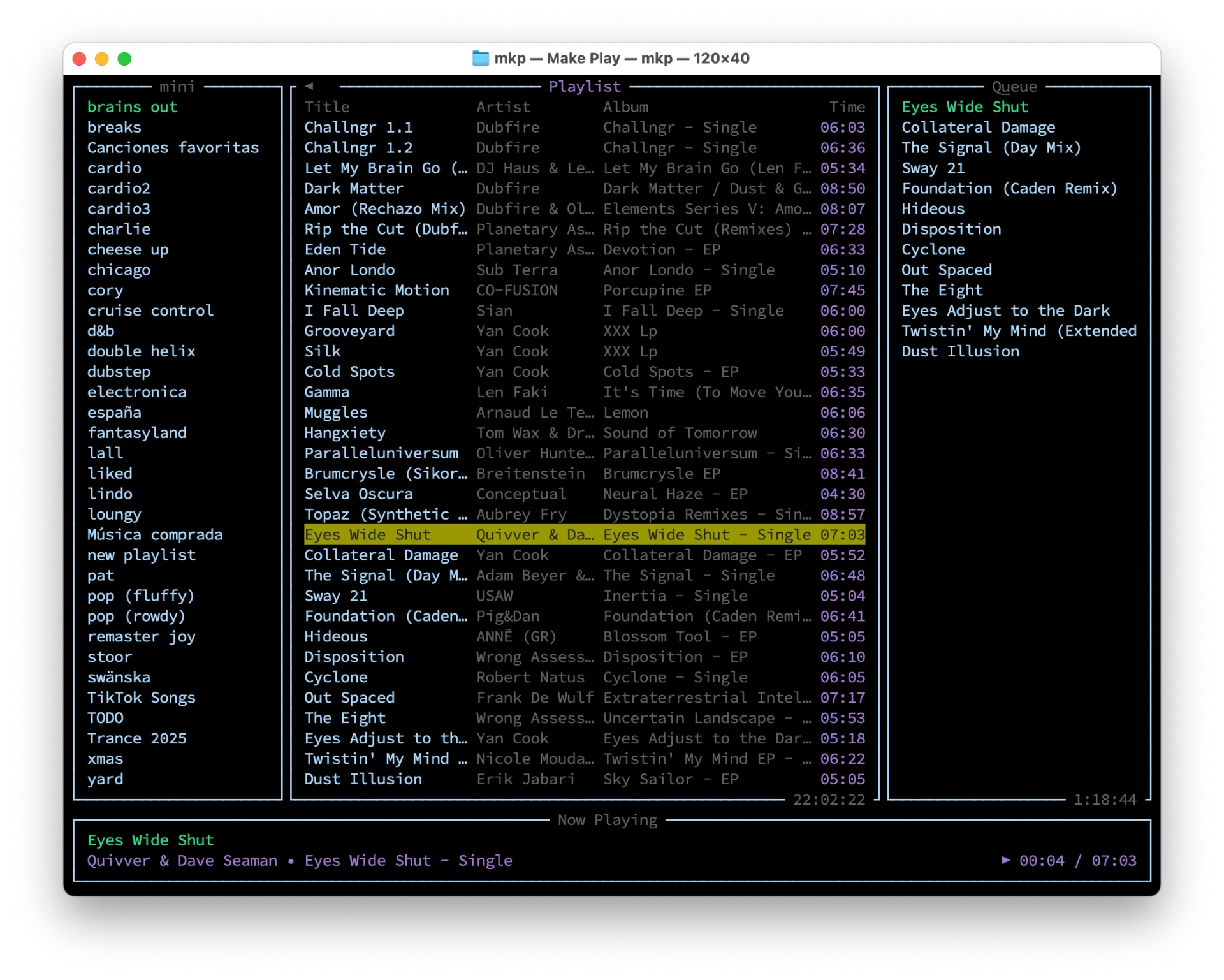
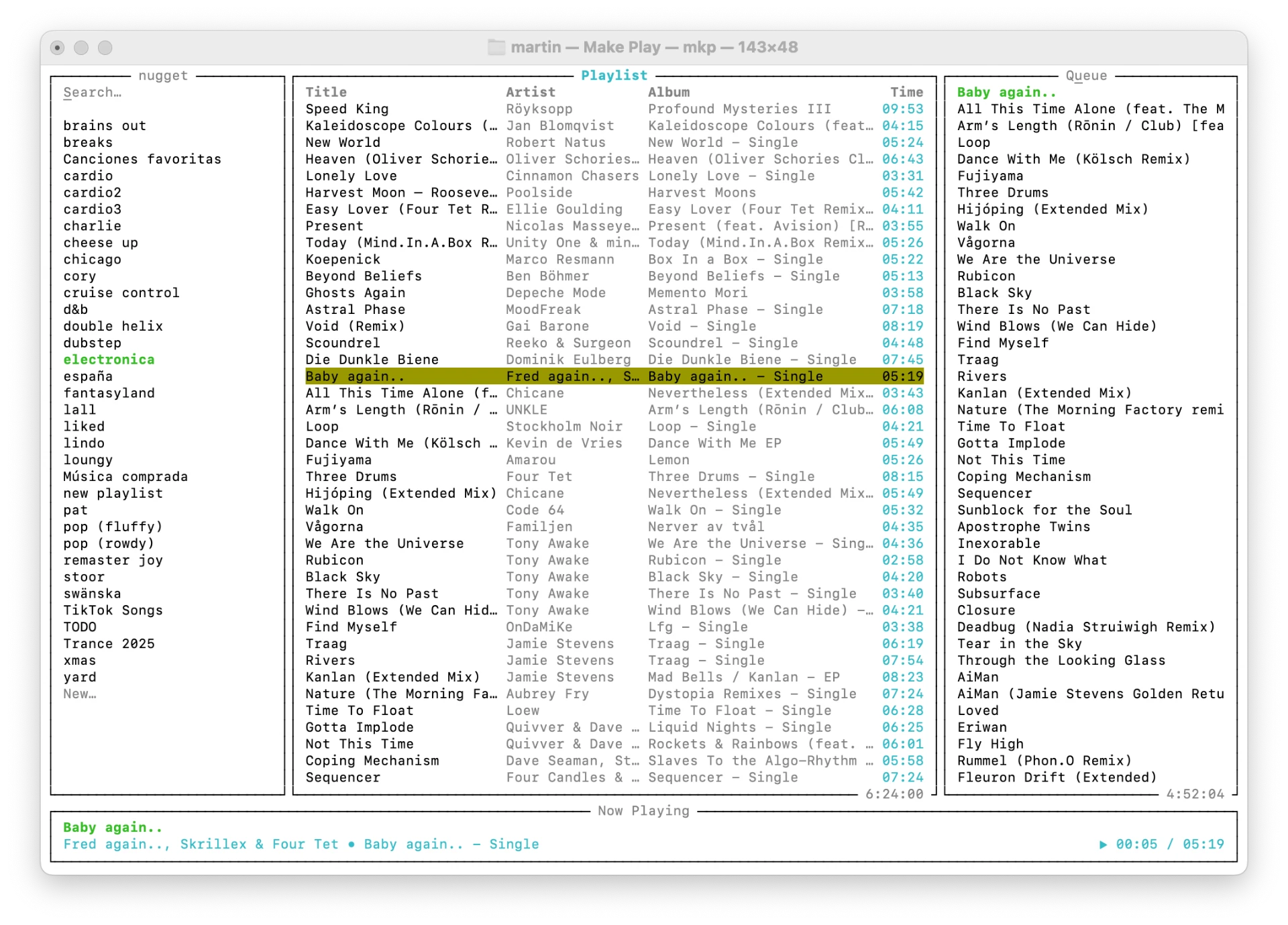
Fuzzy search
Jump to any playlist or track by typing a few characters. Nothing else moves.
Live queue
Push tracks onto the queue and watch remaining time update as it drains.
Signs into your account. Properly.
A menu-bar app on your Mac holds the session, fetches the audio and plays it straight from that Mac. It authorises through Apple Music or logs into Tidal with the official flow — your subscription, your account, nothing worked around.
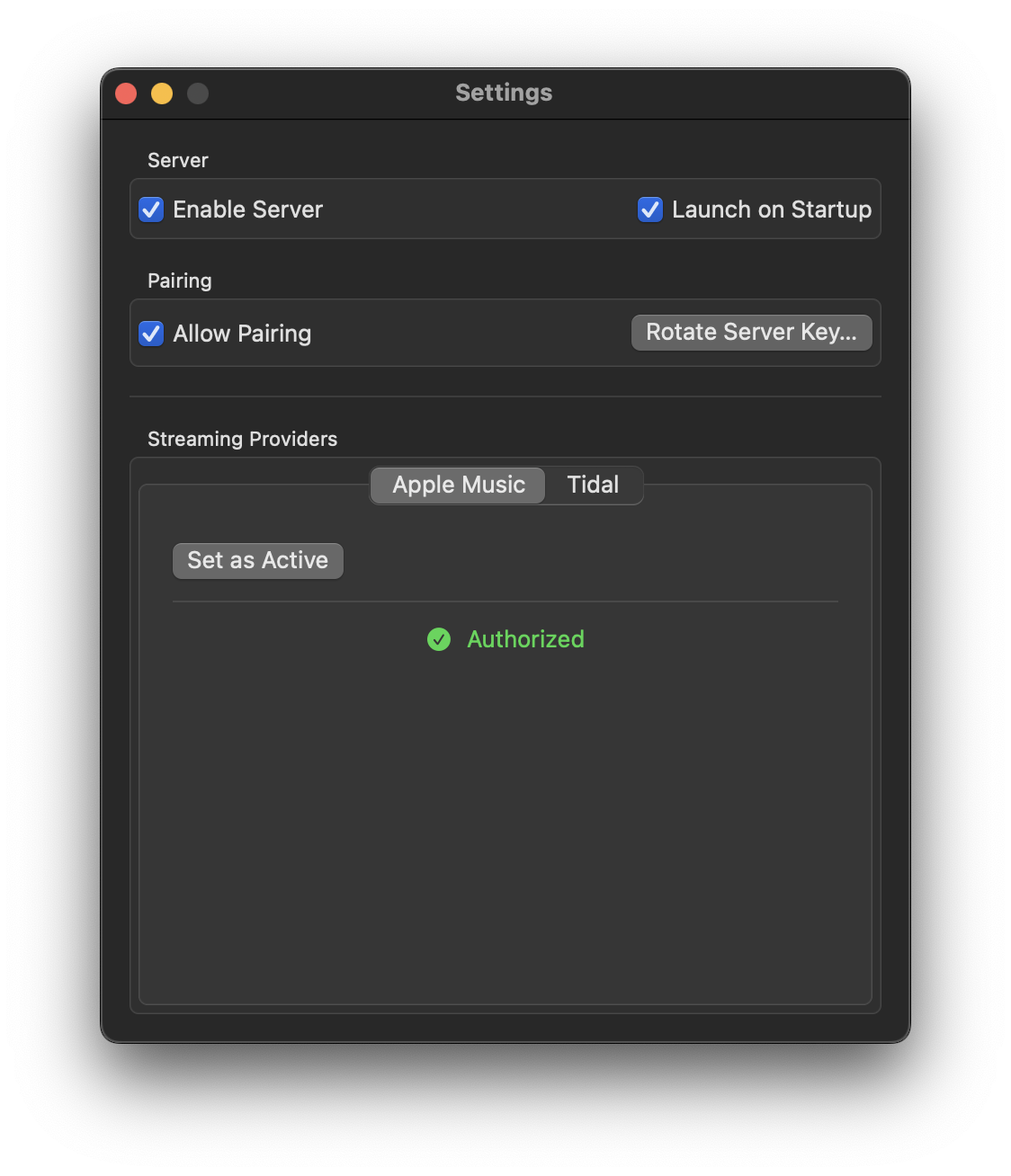
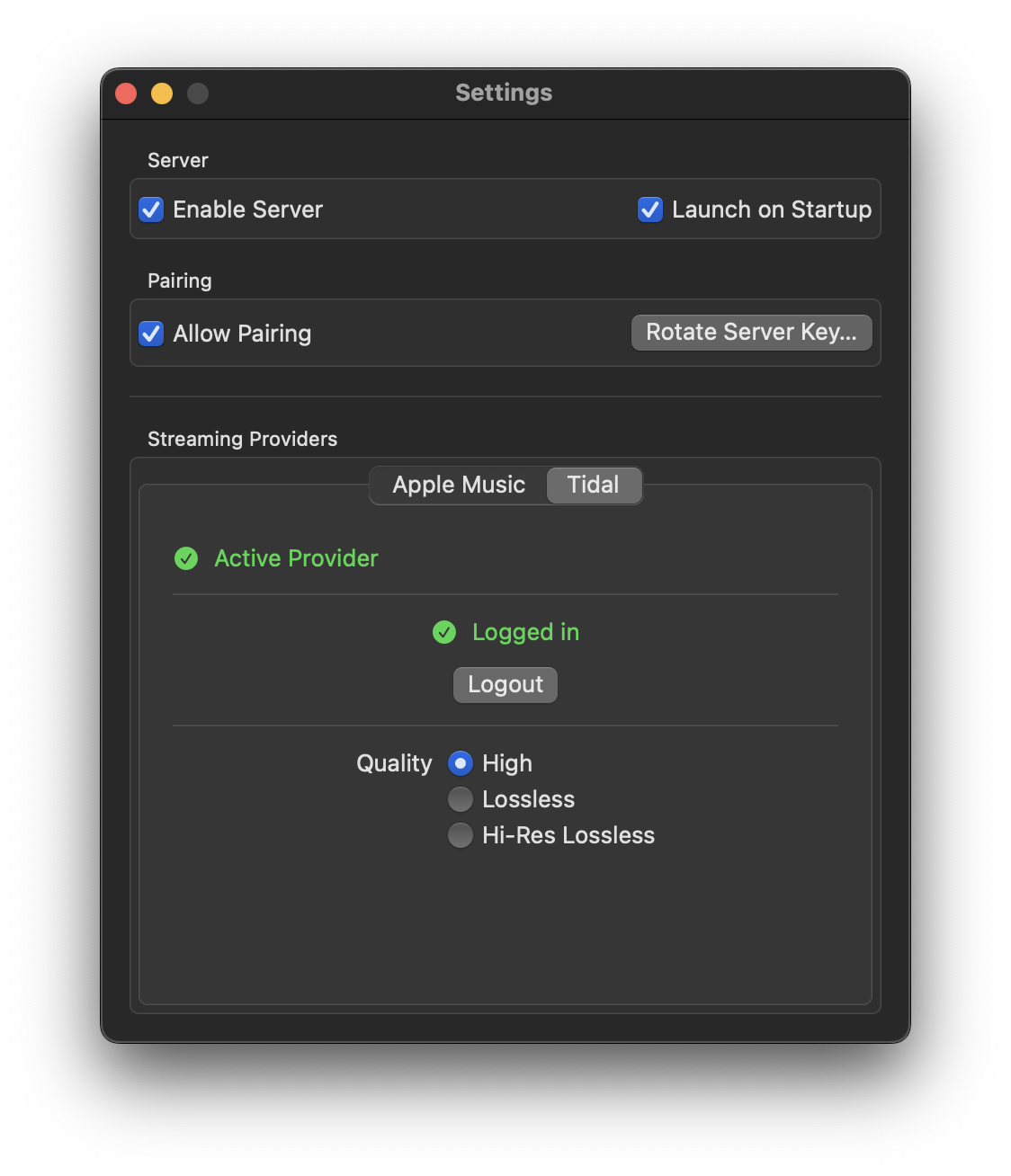
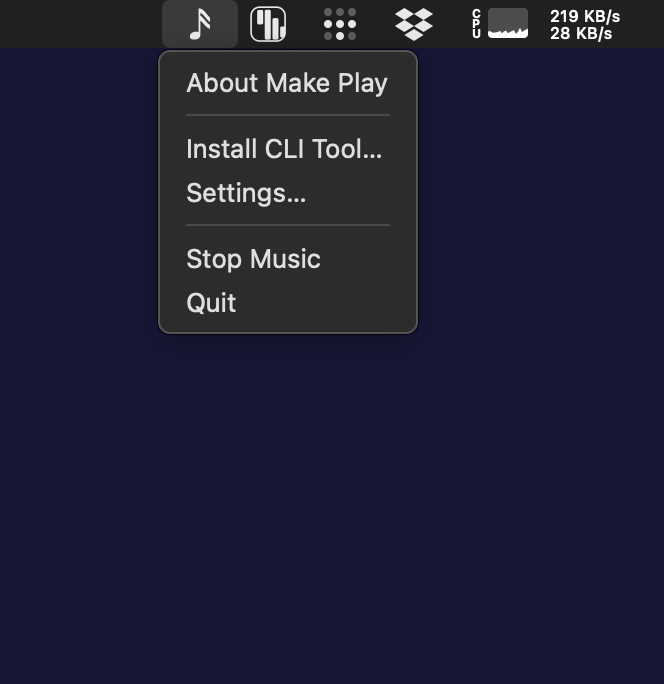
Paired, not open
Clients pair with a server key you can rotate at any time.
Two providers
Switch the active provider between Apple Music and Tidal whenever you like.
Your quality
High, lossless or hi-res lossless on Tidal — whatever your plan allows.
One server. Many hands.
The client is a remote control for the server. Anyone on the same network can pair their own terminal, queue tracks, skip songs, or browse the library.
No audio streams to the clients — the music plays from the server. Call it 🎉 Party Mode 🎉 — everyone is the DJ!
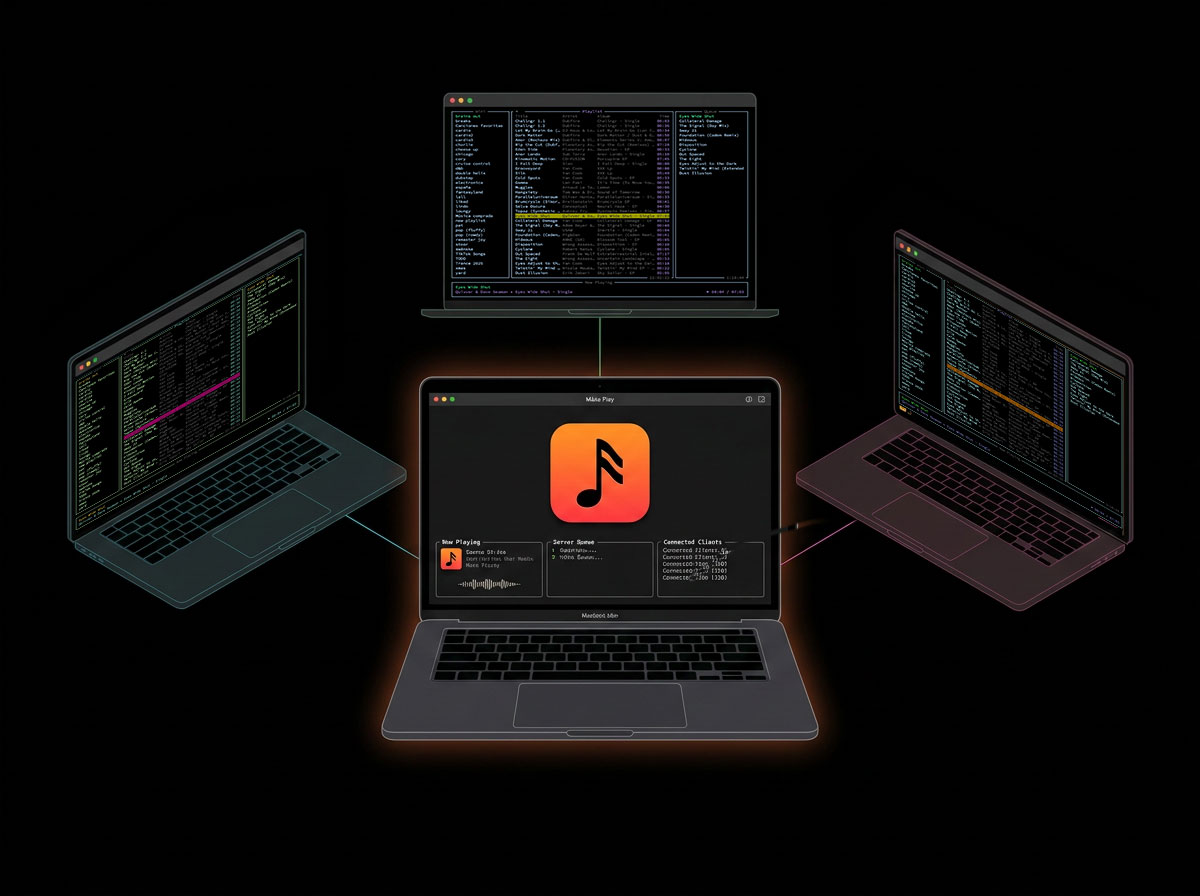
Hands stay home.
Press ? in the client for the full help overlay.
- Space
- play / pause
- ] / [
- next / previous track
- { / }
- seek ±10s
- Alt + { / }
- seek ±1s
- .
- cycle repeat
- s
- search
- ?
- help
- Ctrl + z
- suspend
- Ctrl + c
- quit
- ↑ / ↓
- move cursor
- ← / →
- switch column
- Shift + ← / →
- history back / forward
- Home / End
- jump top / bottom
- PgUp / PgDn
- scroll page
- Enter
- play / select
- Alt + Enter
- shuffle play
- Tab
- actions menu
- f
- filter
- Esc
- back
Found a bug?
Open an issue on GitHub with what happened, what you expected, and your macOS or terminal client version. Screenshots and logs help a lot.